Thanks for reading this Super Smash Bros. Ultimate guide on TendoSource!
Today, I’m going to help you learn how to access the Training mode in Super Smash Bros. Ultimate.
Accessing the Training mode in Super Smash Bros. Ultimate only requires a few simple steps: navigate to the home screen, access the Games & More menu, select Training option, then choice a stage and character to start practicing.
Benefit Of Accessing Super Smash Bros. Ultimate’s Training Mode
Accessing the Training mode in Super Smash Bros. Ultimate allows players to practice playing as characters in a stress-free, relaxing environment.
The Training mode is a non-competitive space that has tons of customization options to help players learn the game.
Furthermore, the game’s Training mode can be accessed at anytime to help improve your skills.
Continue reading for a detailed picture guide of how to access the Training mode in Super Smash Bros. Ultimate!
NOTE: TendoSource is supported by readers like you. We participate in affiliate programs (including Amazon Services LLC Associates Program) designed to provide a means for us to earn fees by linking affiliated sites at no extra cost to you. This allows us to continue creating quality guides while keeping the site running.
How To Access Training Mode In Super Smash Bros. Ultimate (Nintendo Switch)
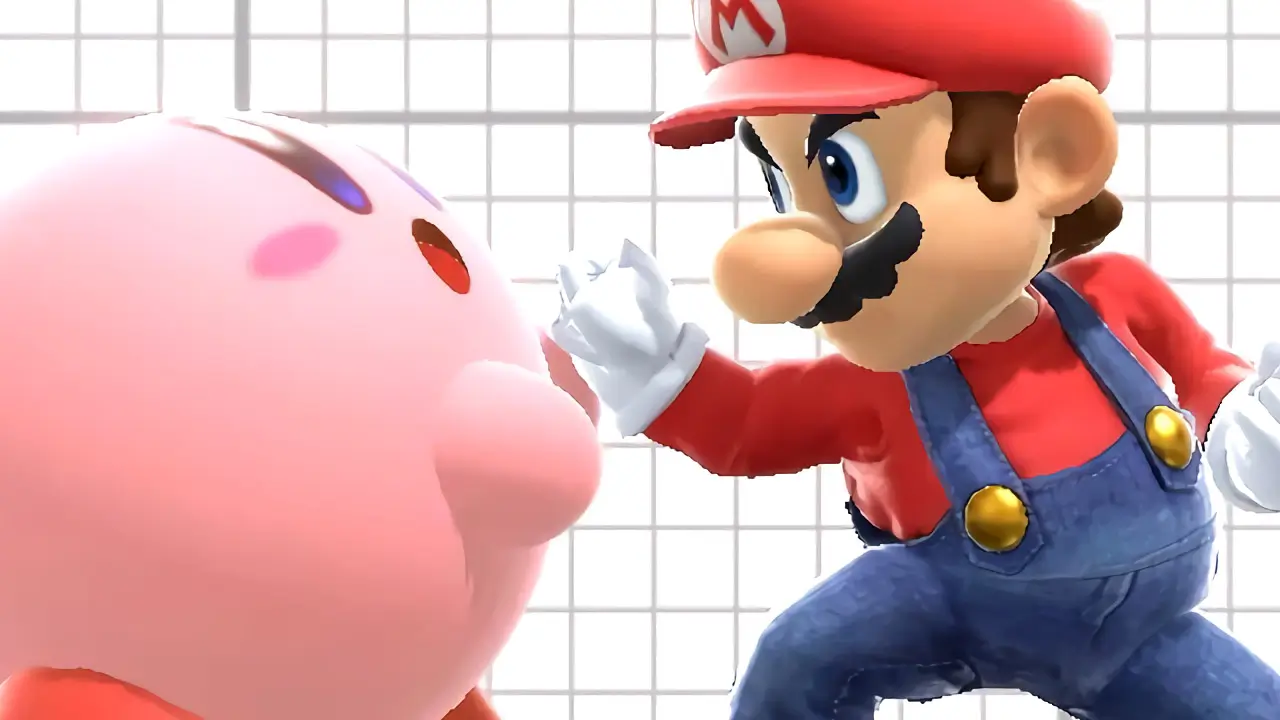
Super Smash Bros. Ultimate’s Training mode allows you to practice your fighting skills against a computer-controlled opponent. The computer simply stands still and welcomes your attacks.
Alternatively, the computer can be set to fight by changing a training setting. Another human player can even control the second character in Training mode if more than one person wants to practice together.
Accessing the Training mode only takes a few moments and is rather easy to accomplish once you know what you’re doing.
Important things to note about Super Smash Bros. Ultimate’s Training mode:
- the player selects the stage, their character, and training opponent
- only one unique computer opponent can be selected
- the computer’s strength level can be adjusted from weak to strong
- additional settings can be altered by pressing the + (plus) button during training
*Button prompts used in this guide are default settings
*This guide is based on using a Nintendo Switch Joy-Con Pair/Nintendo Switch Pro Controller
BEFORE YOU BEGIN
Make sure your Nintendo Switch and controller batteries are charged. This will prevent your controller or console from shutting off.
WHAT YOU’LL NEED
- Super Smash Bros. Ultimate
- a Nintendo Switch
- a controller
DIFFICULTY
- low
TIME REQUIRED
- low
1) Access Super Smash Bros. Ultimate’s Main Menu
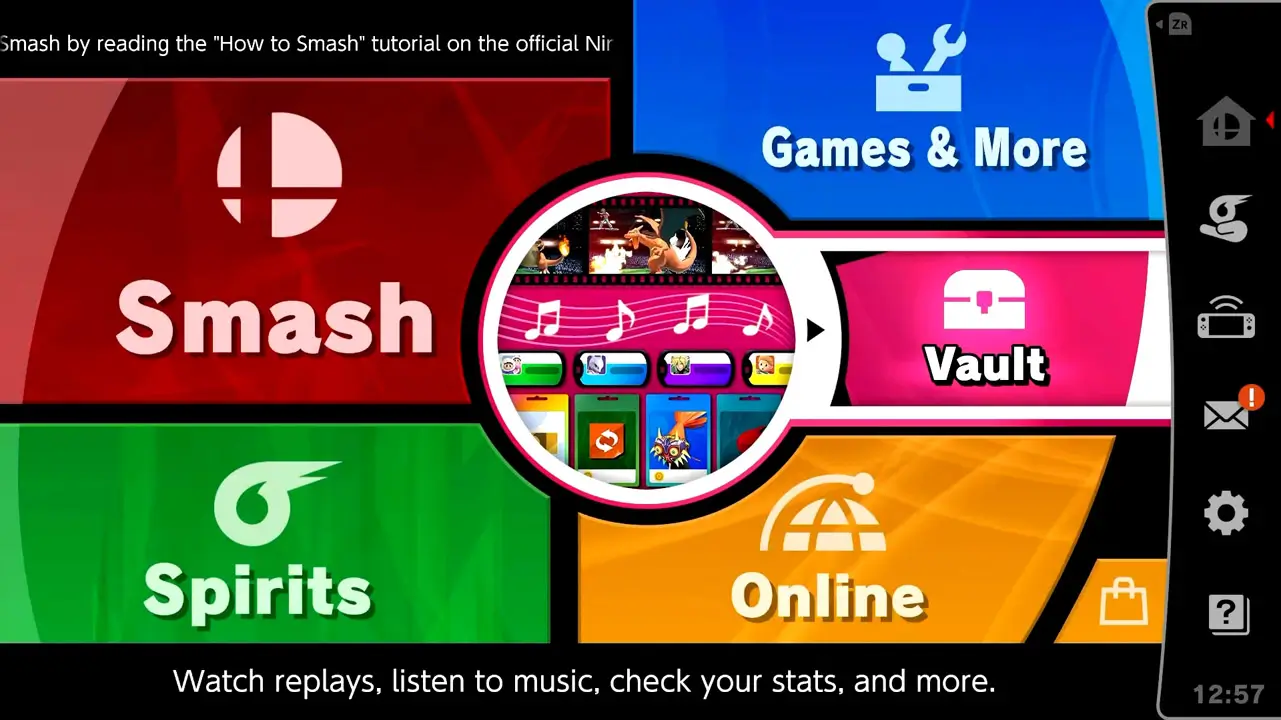
Load Super Smash Bros. Ultimate’s main menu by simply starting the game.
2) Navigate To “Games & More” Option From Menu
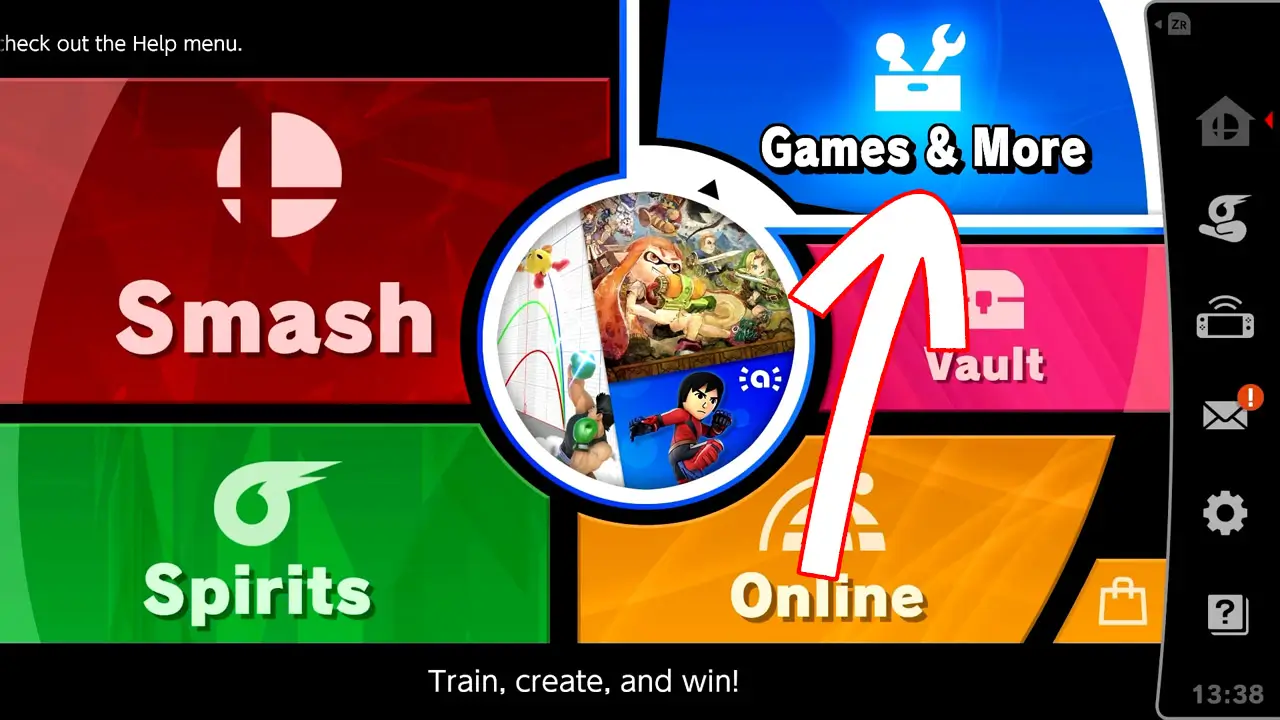
Navigate to Games & More with the (left) analog stick or directional buttons.
Press the confirm button (A button by default) to be taken to the Games & More menu.
3) Select “Training” From The Choices On-Screen
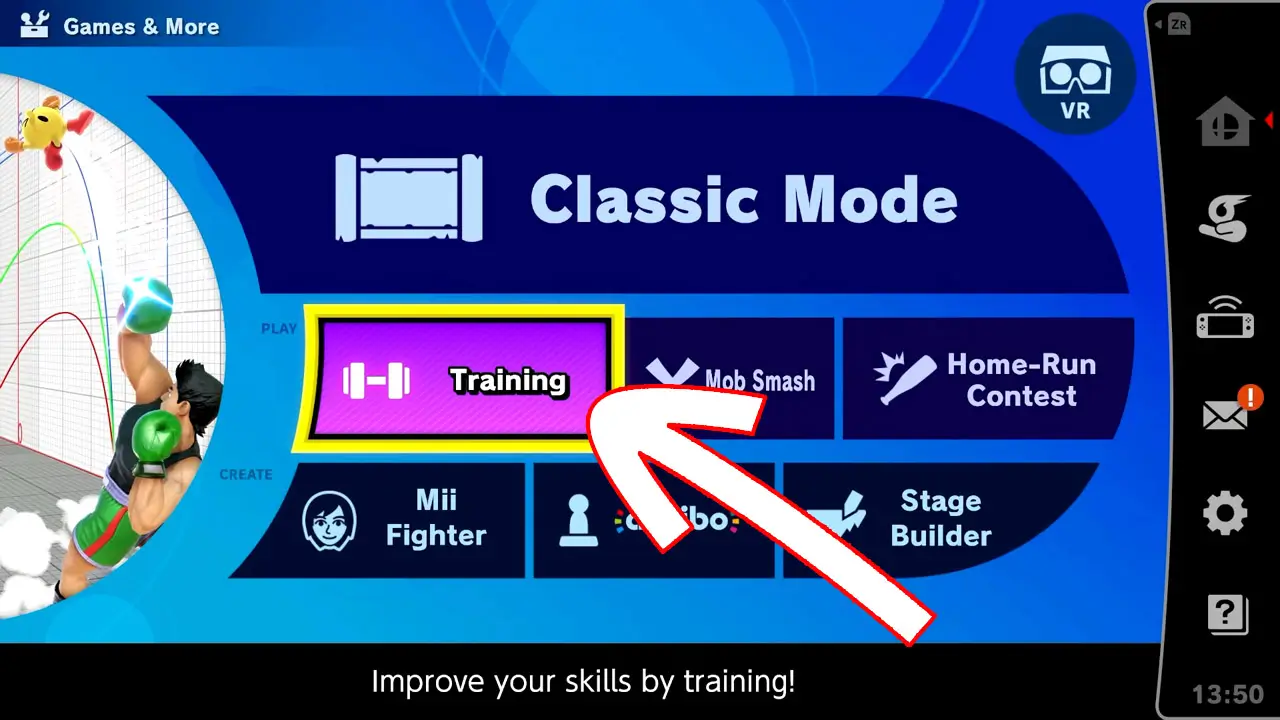
Highlight Training with the (left) analog stick or directional buttons.
This mode allows you to “improve yours skills by Training”.
Press the confirm button to be taken to the stage selection screen.
4) Select A Stage For The Training Session
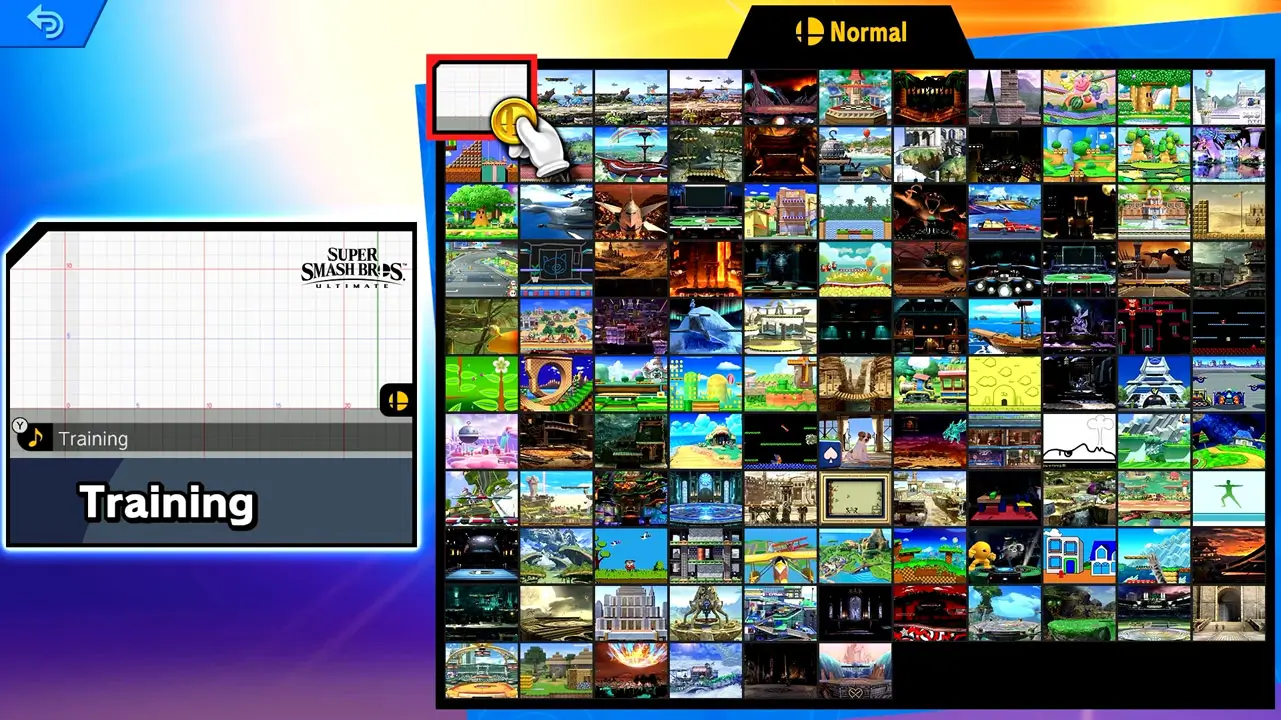
All available stages will be shown on-screen for selection.
Use the directional buttons or (left) analog stick to highlight a stage for training.
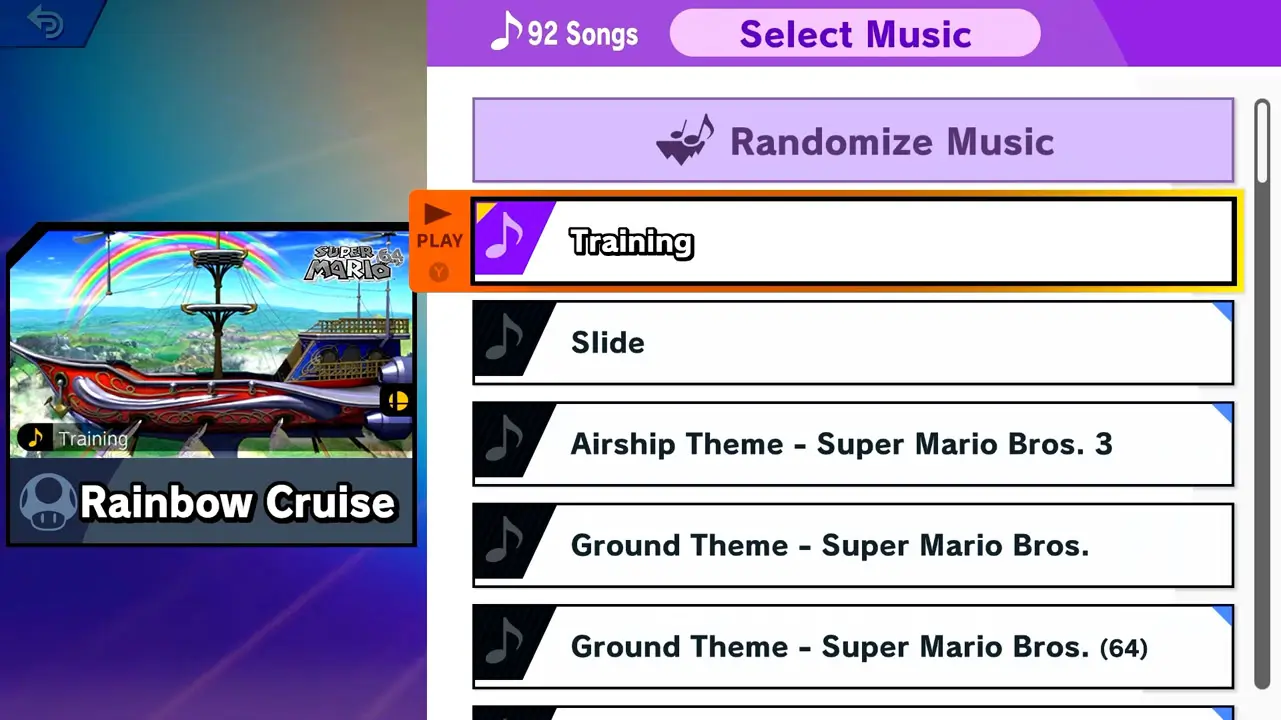
Two options are available for a selected stage:
- Press the Y button to change the training stage music
- Press the X button to change a stage’s form (standard, platforms, or flat)
Press the confirm button to choose a stage and be taken to the character selection screen.
5) Select Characters For The Training Session
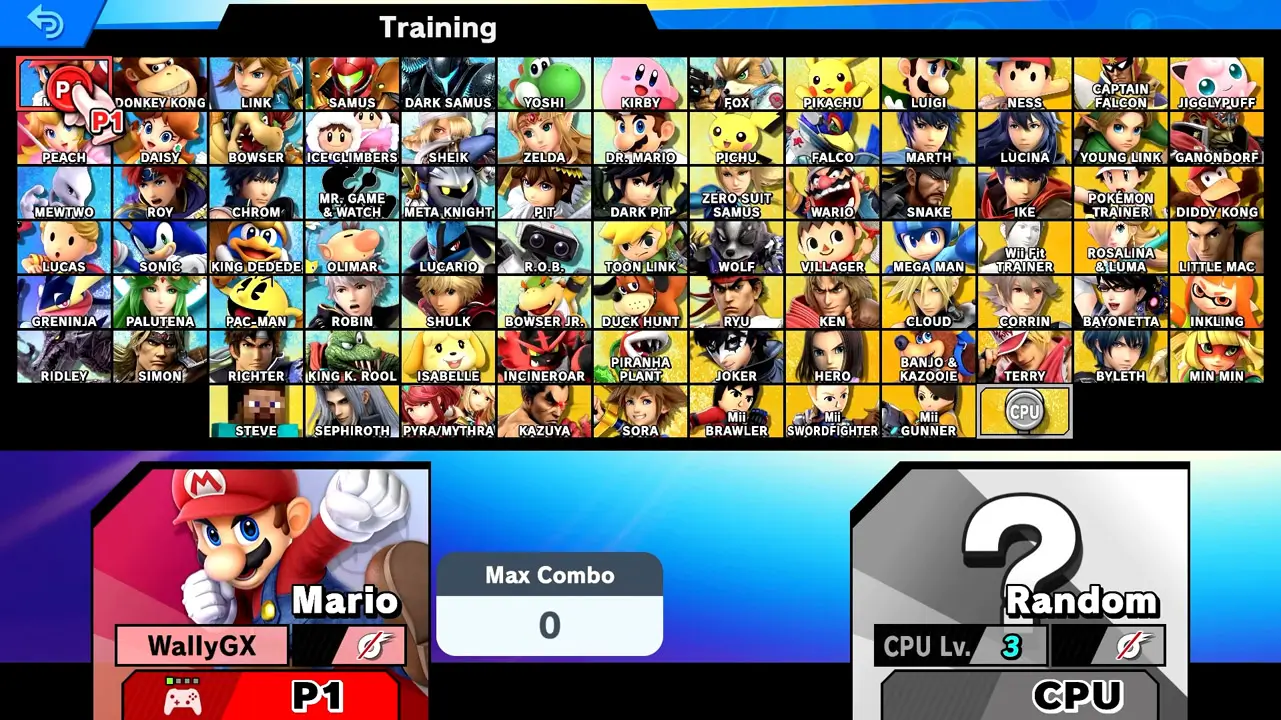
Use the (left) analog stick or directional buttons to select a character to play as and a computer opponent to train against.
Select your character first by navigating to a character portrait and pressing the confirm button.
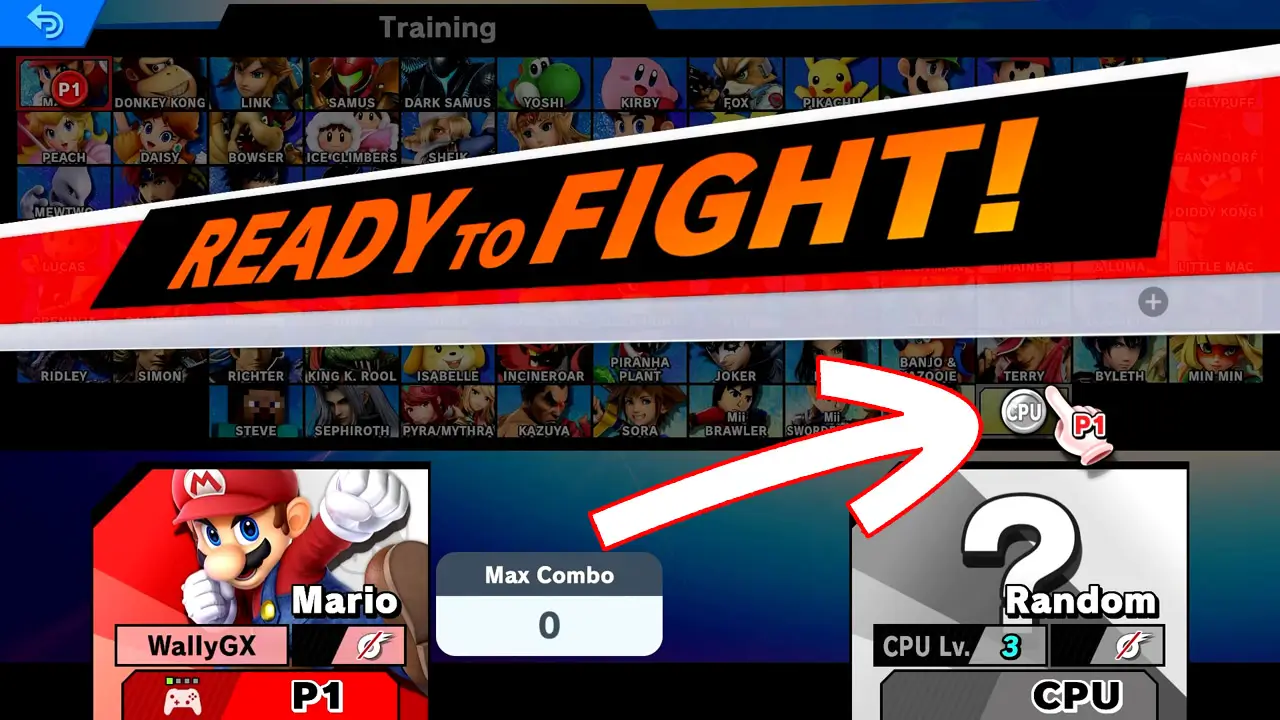
To select a training opponent, navigate to the “CPU” token and press the confirm button to pick up the CPU token.
- The CPU token is on the Random select portrait box by default
Use the (left) analog stick or directional buttons and navigate to a character portrait for your preferred computer training opponent.
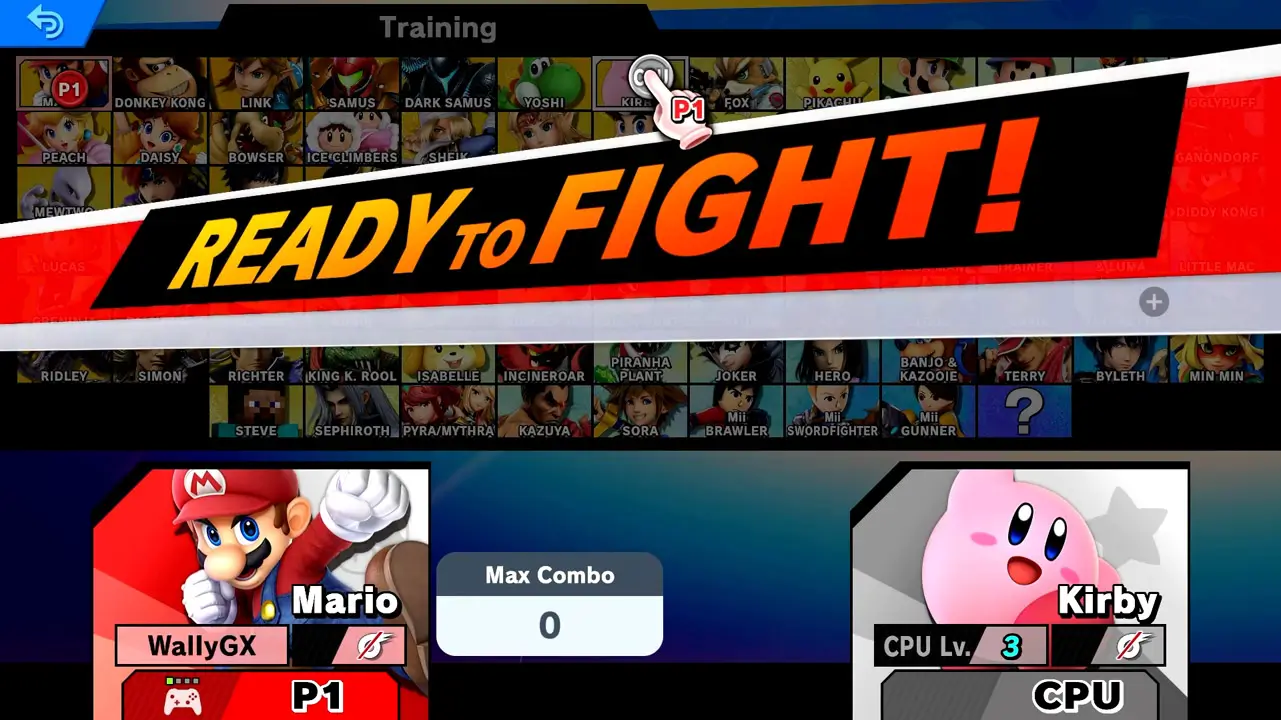
Select the training opponent by pressing the confirm button.
Computer opponents can be adjusted from the fighter select screen in a few ways:
- The computer’s difficulty can be changed by navigating to the CPU Lv. and pressing the confirm button
- Spirits (special items that enhance characters) usage can be turned on/off for each character by pressing the confirm button on the Spirit icon for each character
- An amiibo figurine can be scanned and fought against by pressing the confirm button on the CPU fighter name
Press the confirm button once both characters are selected to be taken to Training mode.
6) Play Training Mode
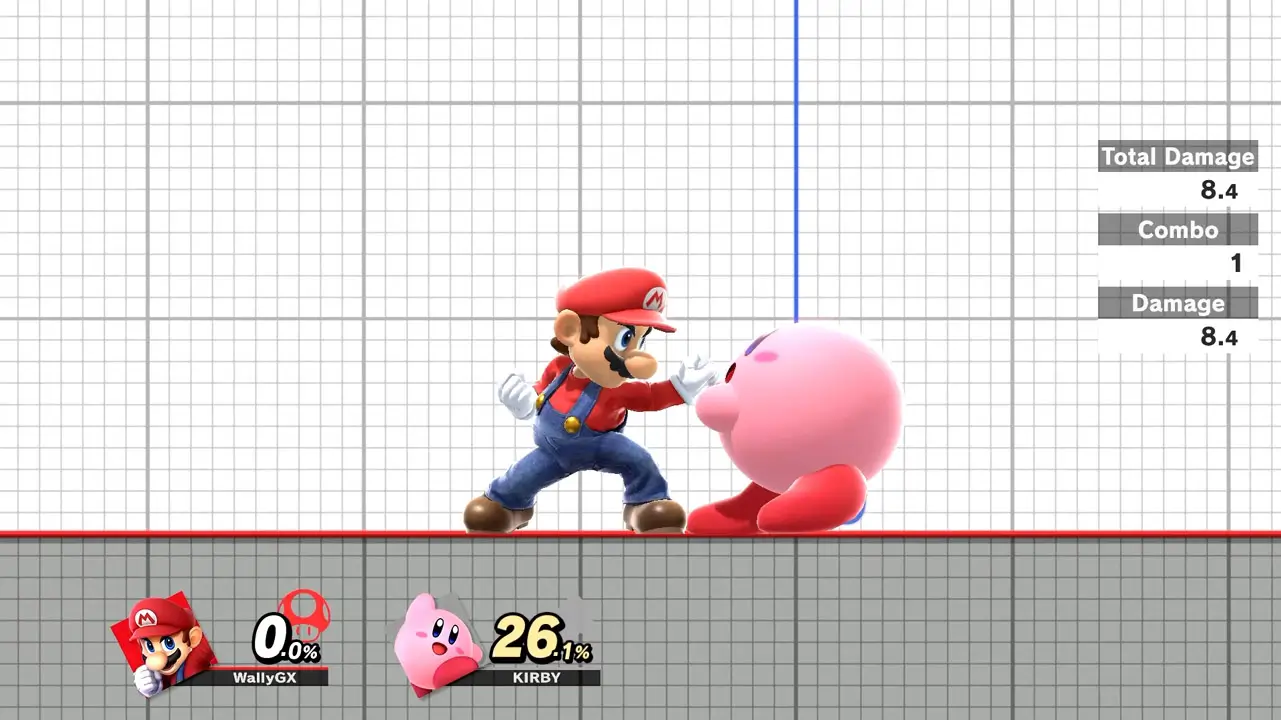
Enjoy playing Super Smash Bros. Ultimate’s Training Mode with your selected characters.
Try out moves, combos, and more until your heart’s content!
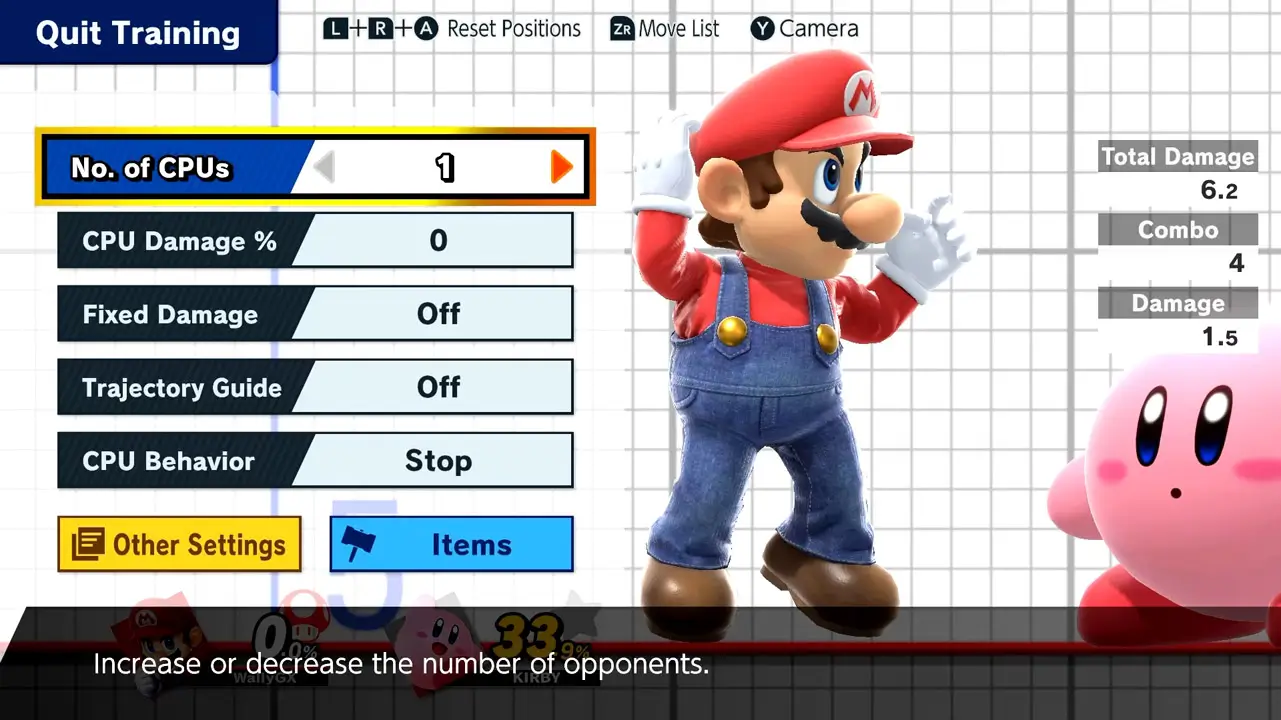
Press the + (plus) button to access additional training options and settings such as:
- a character move list
- number of computer opponents
- computer damage percentage
- fixed damage
- trajectory guide
- computer behavior
- fighting speed
- item usage
- and more
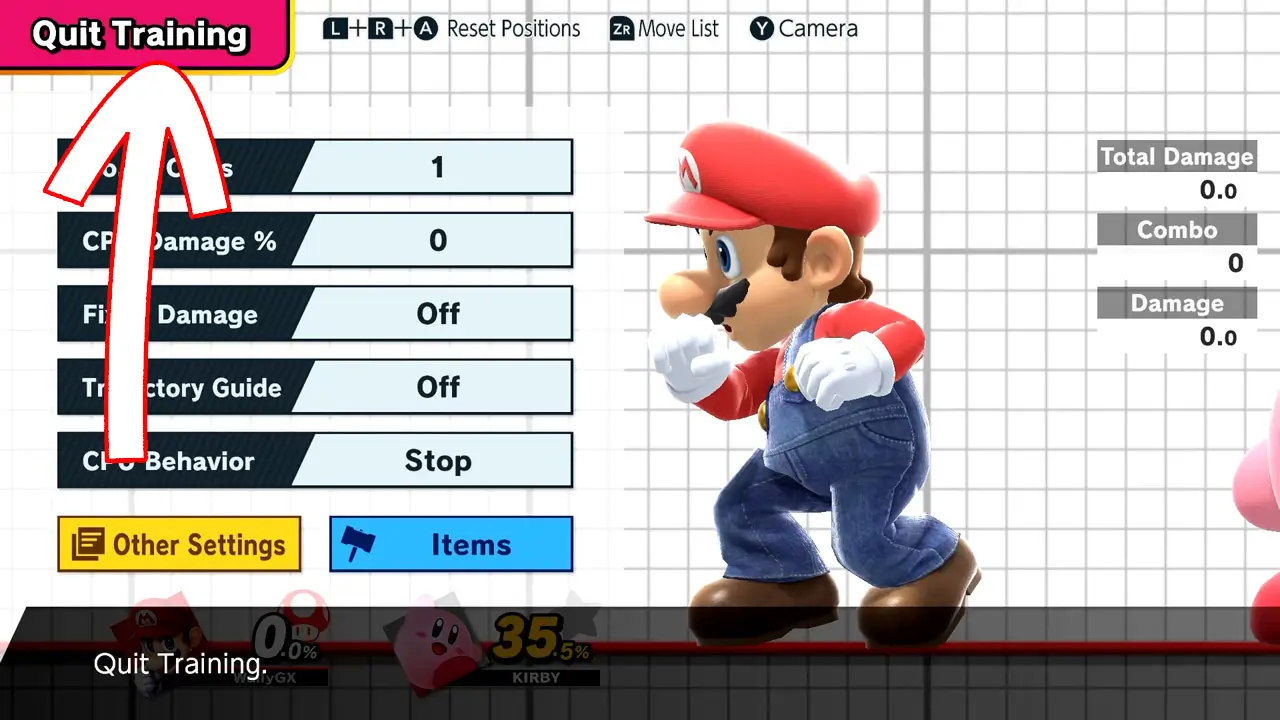
Quit Training Mode by pressing the + (plus) button, select Quit Training, and press the confirm button.
Use this helpful picture guide whenever you want to play Training Mode again.
Enjoy smashing!
Helpful Super Smash Bros. Ultimate Tips You Should Know About
As a bonus, enjoy three of my personal Super Smash Bros. Ultimate tips-and-tricks that improved my play experience.
1) Make A Smash Tag Online Profile
Create and customize your own personal Super Smash Bros. Ultimate online profile (know as a “Smash Tag)” with over 500 picture icons and a dozen glorious colors.
Why You Should Make An Online Profile
Your online profile is a super-cool personalized way to identify yourself when playing online. If you ever play online, creating an online profile is a must!
Learn how to make your own online profile in Super Smash Bros. Ultimate with my picture guide How To Easily Make An Online Profile In Super Smash Bros. Ultimate and start smashing online!
2) Play Home-Run Contest
Have fun improving your skills and getting a high score in Home-Run Contest, an enjoyable mini-game mode in Super Smash Bros. Ultimate.
Why You Should Play Home-Run Contest
Home-Run Contest helps players improve their attack proficiency and fighter positioning by providing a fun game mode against a stationary sandbag opponent. These skills are vital to learn and can be used in every other fighting mode in the game.
Learn how to access Home-Run Contest in Super Smash Bros. Ultimate with my picture guide How To Easily Access Home-Run Contest In Super Smash Bros. Ultimate and then have fun smashing!
3) Change Volume And Sound Settings
Customize the audio settings of Super Smash Bros. Ultimate to perfectly suit your needs. Adjust the background music, sound effects, and voice volumes to create an immersive gaming experience tailored just for you.
Why You Should Adjust Sound Settings
Changing the game’s volume settings is essential for those with sensitive ears or who are hard-of-hearing. Adjusting the volume to your preference can make playing even more enjoyable.
Learn how to change sound settings in Super Smash Bros. Ultimate with my picture guide How To Easily Change Sound Settings In Super Smash Bros. Ultimate then start smashing!
How To Get Super Smash Bros. Ultimate
Looking to play or gift Super Smash Bros. Ultimate now that you know a bit more about the game? I’m here to help!
Firstly, Super Smash Bros. Ultimate is only available on Nintendo Switch since it’s made by Nintendo.
It’s tons of fun for all ages while providing a lot of replay value. The game is stuffed with things to do and unlock, alone or with family and friends.
Personally, I’ve played Super Smash Bros. Ultimate for nearly 300 hours, and I still have so much more to do and unlock.
Super Smash Bros. Ultimate is the perfect single and multiplayer game for all ages
I’ve had fun beating the game’s adventure mode and played countless matches against others online.
Furthermore, I’ve taken my Nintendo Switch to work and played Super Smash Bros. Ultimate with friends and coworkers for exciting in-person play sessions.
Playing Super Smash Bros. Ultimate has provided some of the most fun on the Nintendo Switch I have ever had.
And I really hope you, your family, friends, or gift recipient have just as much fun.
Please feel free to use my Amazon affiliate links to view Super Smash Bros. Ultimate availability on Amazon by clicking here or by using the links below.
Doing so helps me earn at no cost to you which supports the ongoing creation of awesome free game guides (just like this one).
Super Smash Bros. Ultimate Links
PHYSICAL: Super Smash Bros. Ultimate Nintendo Switch
DIGITAL: Super Smash Bros. Ultimate Nintendo Switch
DLC 1: Super Smash Bros. Ultimate Fighter Pass 1
DLC 2: Super Smash Bros. Ultimate Fighter Pass 2
LIMITED EDITION CONSOLE: Super Smash Bros. Ultimate + Nintendo Switch OLED Bundle
You can also visit Nintendo’s official Super Smash Bros. Ultimate’s website by clicking here.
I hope you enjoy Super Smash Bros. Ultimate for Nintendo Switch just as much as I have!
More Great Nintendo Tutorials To Enjoy!
I hope you enjoyed learning how to access Super Smash Bros. Ultimate’s Training mode in this helpful guide.
Bookmark TendoSource to never miss another Super Smash Bros. guide again.
Now, enjoy even more great Nintendo related articles on TendoSource.
Images credited. All others owned by Nintendo or respective owners. Screenshots taken by me.